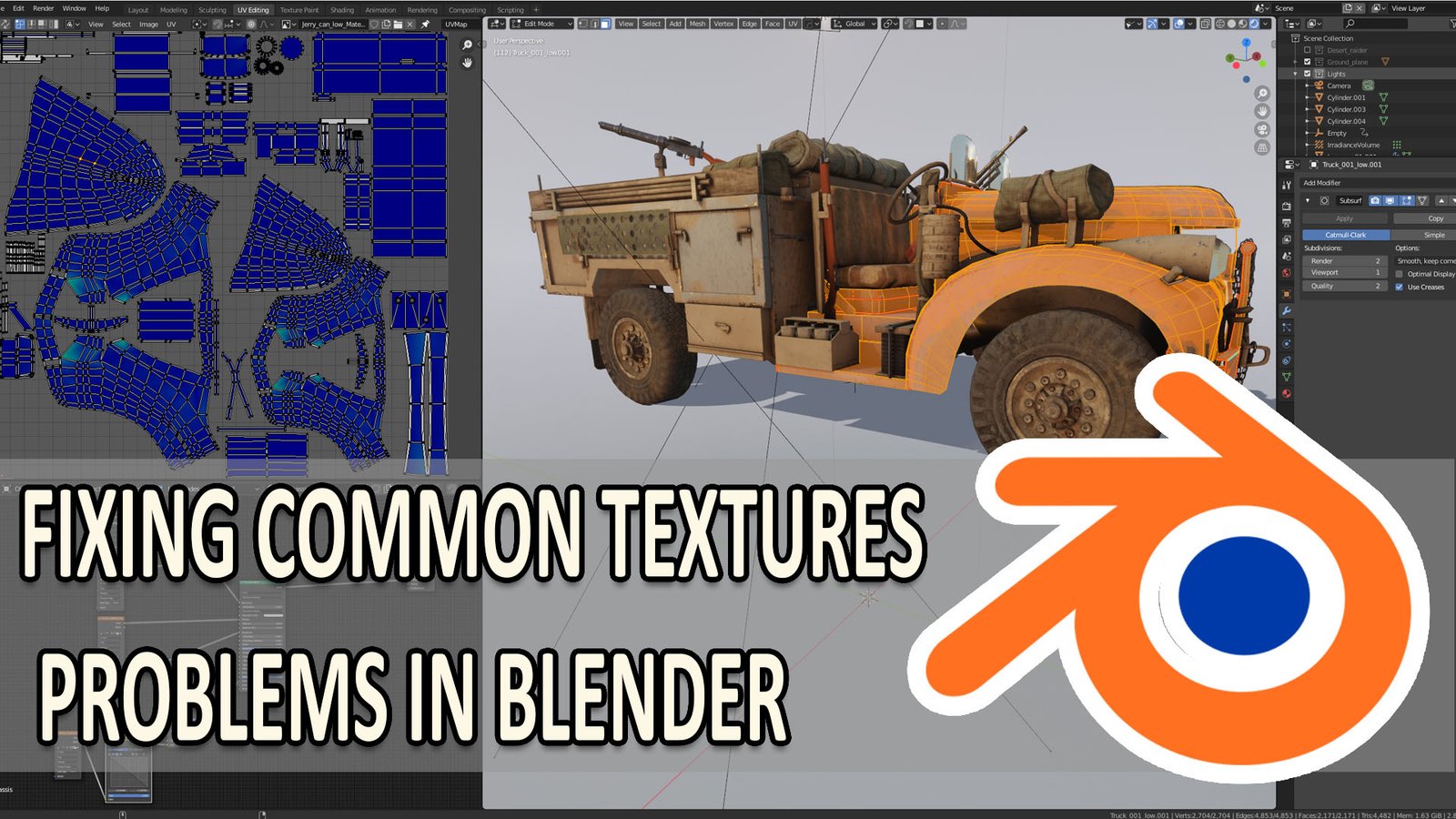
Blender Performance & Texture Problems: Complete Troubleshooting Guide for Faster Workflows
Blender is a powerful 3D tool used by artists, designers, game developers, and studios across the United States. However, even experienced users face slow previews, long render times, missing textures, and strange material behavior. These Blender Performance & Texture Problems can interrupt creative work and waste valuable production time.
After working with Blender projects that include detailed models, high-resolution textures, and complex scenes, one lesson becomes clear: performance issues usually come from a combination of scene management, hardware settings, and asset preparation. A simple workflow change can often make a large difference.
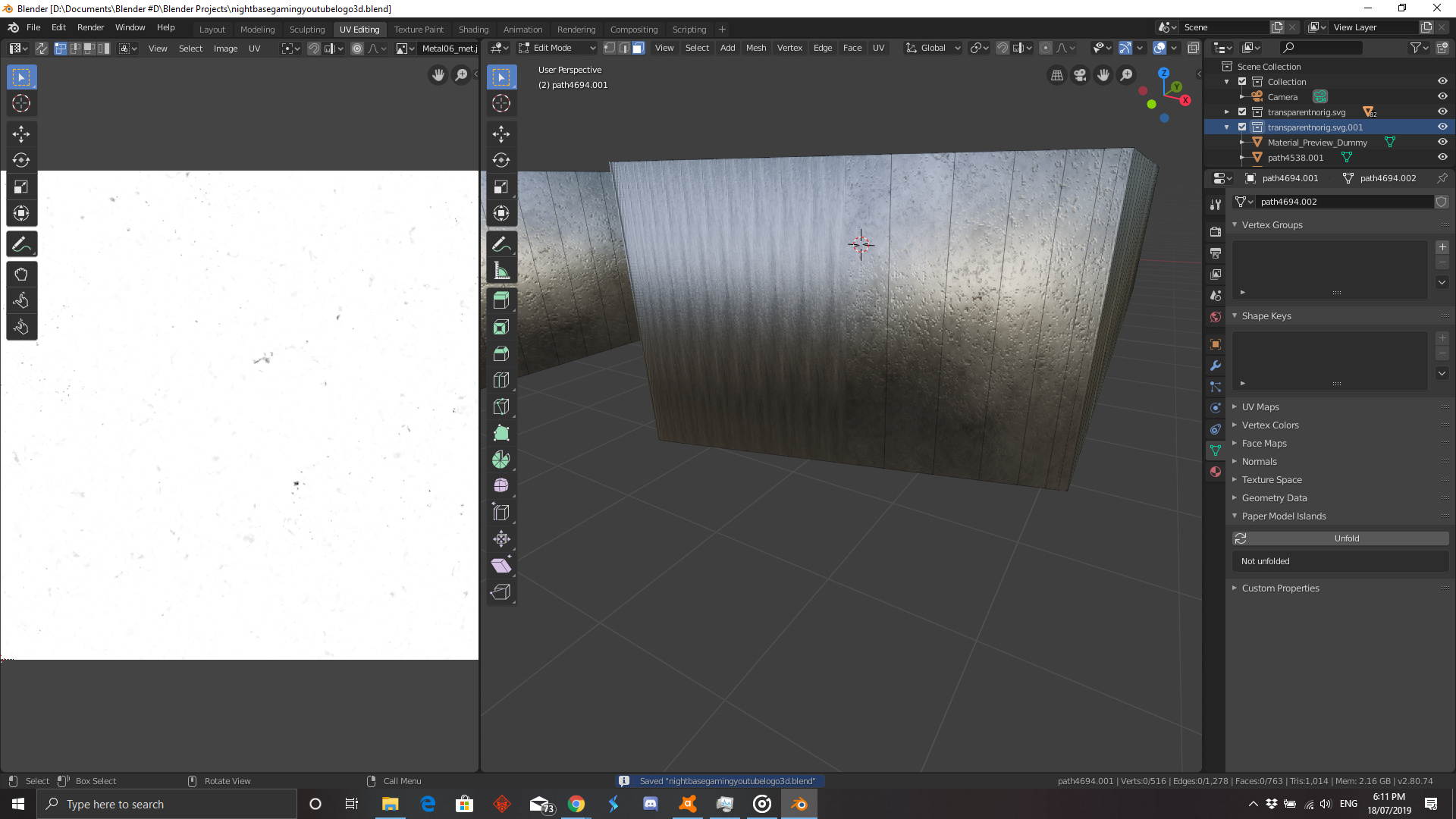
Understanding Blender Performance & Texture Problems
Blender Performance & Texture Problems describe issues that affect how smoothly Blender runs and how correctly materials appear. These problems can show up during modeling, sculpting, animation, rendering, or texture painting.
Performance problems often appear as laggy viewport movement, slow file loading, crashes, or long render times. Texture problems may include missing images, stretched surfaces, wrong colors, or materials that look different from the intended design.
- ✦ Performance Issues
Common examples include low viewport speed, high memory usage, slow simulations, and delayed rendering.
- ✦ Texture Issues
Common examples include broken image links, incorrect UV layouts, missing maps, and material display errors.
Why These Problems Happen
Blender scenes can become heavy when they contain millions of polygons, many objects, high-resolution images, or complex shader networks. Each element requires system resources.
Many users try to solve Blender Performance & Texture Problems by changing random settings. A better approach is to identify whether the issue comes from the scene, software settings, or computer hardware.
- ✦ Large Assets
Huge models and 8K textures can quickly increase memory use.
- ✦ Incorrect Setup
Wrong material settings or missing files can create texture errors.
Common Causes of Slow Blender Performance
Slow performance is one of the most common Blender challenges. Artists working on product designs, architecture, and animation often notice slowdowns as projects grow.
The good news is that many performance problems can be improved without buying a new computer. Proper scene organization and optimized assets are often enough.
- ✦ Too Many Polygons
Dense meshes increase the workload for the CPU and GPU, especially in complex scenes.
- ✦ Heavy Modifiers
Subdivision, simulation, and particle modifiers can slow viewport performance.
- ✦ Limited Hardware Resources
Low RAM, older GPUs, or slow storage can affect Blender speed.
How to Improve Blender Speed
Start by hiding objects that are not needed, reducing unnecessary geometry, and using simpler preview settings. These small changes help Blender respond faster.
For professional workflows, create different versions of assets. Use lightweight models during editing and detailed versions during final rendering.
- ✦ Use Proxy Models
Lower-detail models help maintain a smooth workflow while editing.
- ✦ Manage Scene Collections
Organized collections make it easier to control heavy assets.
Fixing Blender Texture Problems and Material Errors
Texture problems can make a finished model look unfinished. A realistic object depends on correct image maps, UV placement, and material settings.
Many Blender Performance & Texture Problems related to textures happen because Blender cannot find image files or because the texture settings do not match the project needs.

- ✦ Check Missing Files
Use Blender’s file management tools to locate and reconnect missing texture images.
- ✦ Review UV Maps
Incorrect UV layouts can cause stretched or misplaced textures.
- ✦ Confirm Shader Settings
Material nodes and texture inputs must use the correct connections.
Common Texture Mistakes
A common mistake is using very large textures without considering the final output size. A small web image does not need the same texture resolution as a movie-quality render.
Another common issue is forgetting color management settings. Different settings can change how textures appear inside Blender.
- ✦ Wrong File Format
Some workflows fail when images are saved in unsupported or damaged formats.
Optimizing Textures for Better Blender Performance
Large textures are useful for close-up renders, but they can create Blender Performance & Texture Problems when used everywhere. Efficient texture management keeps projects faster.
Professional artists often balance visual quality and performance by choosing the right texture size for each object.

- ✦ Reduce Texture Resolution
Use smaller images for background objects and distant models.
- ✦ Compress Image Files
Compressed textures reduce memory usage while keeping good quality.
- ✦ Reuse Materials
Shared materials reduce unnecessary data inside Blender files.
Texture Optimization Workflow
A good workflow starts by organizing texture files, naming assets clearly, and removing unused images. This prevents confusion in large projects.
Before final rendering, test textures at the required output size. This avoids wasting resources on details viewers will never notice.
- ✦ Clean Unused Data
Removing unused materials and images can reduce file size.
GPU, RAM, and Hardware Settings for Blender
Hardware plays a major role in Blender performance. The GPU affects rendering speed, while RAM helps manage large scenes and textures.
Before upgrading hardware, check Blender settings. Many users do not use their available GPU power because the correct rendering device is not selected.
- ✦ Enable GPU Rendering
Using supported GPUs can reduce rendering time compared with CPU-only rendering.
- ✦ Increase RAM Capacity
More memory helps with large scenes and detailed textures.
- ✦ Use Fast Storage
SSD storage improves loading times for large project files.
When Hardware Upgrades Help
Hardware upgrades are useful when optimization cannot solve performance limits. For example, artists working with large animations may need more RAM or a stronger GPU.
However, better hardware cannot fix poor project organization. Efficient files always perform better.
- ✦ Upgrade Based on Need
Choose upgrades based on modeling, animation, simulation, or rendering tasks.
Troubleshooting Blender Performance & Texture Problems Step by Step
A structured troubleshooting process saves time. Instead of changing many options at once, test one possible cause at a time.
This method helps identify the exact source of Blender Performance & Texture Problems and prevents unnecessary changes.

- ✦ Step 1: Check Scene Size
Review objects, polygons, modifiers, and textures that increase workload.
- ✦ Step 2: Check Texture Links
Confirm that all image files are available and correctly connected.
- ✦ Step 3: Test Render Settings
Adjust samples, resolution, and rendering devices for better speed.
A Practical Debugging Habit
Experienced Blender users often create small test files to isolate problems. This makes it easier to find whether an issue comes from an asset or from Blender settings.
Keeping backup versions also protects projects from accidental changes during troubleshooting.
- ✦ Save Versions
Multiple file versions make recovery easier during complex projects.